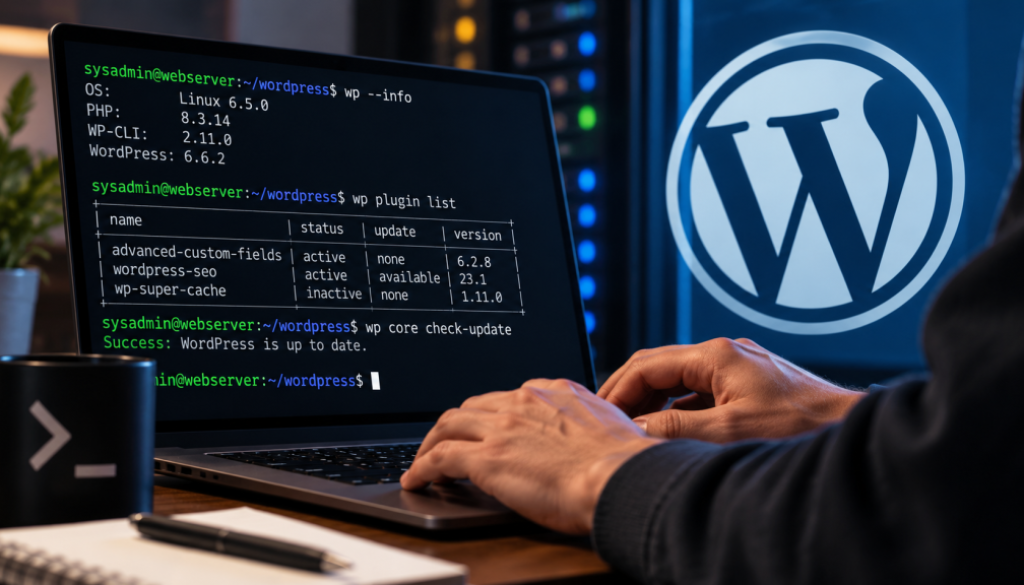
WP-CLI for WordPress System Administrators
A Practical Guide to Managing WordPress from the Command Line
WordPress administration doesn’t have to mean logging into the dashboard and clicking through menus. For system administrators responsible for maintaining WordPress sites, managing updates, troubleshooting production issues, and automating routine tasks, WP-CLI provides a faster and more repeatable way to work.
WP-CLI is the official command-line interface for WordPress. It allows administrators to manage core WordPress functionality, plugins, themes, users, databases, caches, and much more without relying on the web interface. It is particularly useful when managing multiple sites, working over SSH, or building operational scripts that need to run unattended.
This guide covers the most useful WP-CLI commands and workflows for sysadmins, with an emphasis on operational efficiency, security, and reliability.
1. Getting Started with WP-CLI
WP-CLI runs PHP code in the context of a WordPress installation. Unlike the WordPress dashboard, it doesn’t require a browser or an interactive session, making it suitable for SSH sessions, shell scripts, and scheduled jobs.
To verify that WP-CLI is installed and working, run:
wp --info
wp cli version
Navigate to the WordPress installation directory before running commands:
cd /var/www/html/wordpress
wp core version
WP-CLI generally discovers the WordPress installation from the current directory. If you’re working outside that directory, specify the path explicitly:
wp --path=/var/www/html/wordpress core version
On production servers, you may need to run commands as the same operating-system user that owns or manages the WordPress files. For example, on Ubuntu systems using Apache or PHP-FPM with the www-data account:
sudo -u www-data wp --path=/var/www/html/wordpress core version The appropriate account depends on your server configuration. Consistent execution under the correct user helps prevent permission problems involving files, caches, and generated content.
2. Core Updates and Site Health
Keeping WordPress core current is a fundamental maintenance task. WP-CLI makes it easy to check the installed version, inspect available updates, and perform upgrades.
wp core version
wp core check-update
wp core update
Before applying an update on a production site, review compatibility requirements, back up the database and files, and test the update when possible.
You can also verify the integrity of WordPress core files against the official checksums:
wp core verify-checksums This is particularly valuable when investigating unexpected file modifications or a suspected compromise. Checksum verification is not a complete security audit, however; it does not verify custom themes, plugins, uploads, or every file in the installation.
For a quick overview of the environment, inspect the PHP version and loaded extensions using the PHP CLI:
php -v
php -m
Remember that the PHP CLI may use a different configuration from PHP-FPM or Apache. If a site behaves differently between the command line and the browser, compare the PHP binaries, versions, extensions, and configuration files used by each environment.
3. Managing Plugins and Themes
Plugin and theme management is one of WP-CLI’s most useful capabilities. It makes it possible to inventory installations, identify outdated components, and perform bulk maintenance without navigating the WordPress dashboard.
List installed plugins:
wp plugin list Check for available plugin updates:
wp plugin list --update=available Update a specific plugin:
wp plugin update wordpress-seo Update all plugins:
wp plugin update --all The same general workflow applies to themes:
wp theme list
wp theme update --all
For production environments, updating everything in one command may be convenient but isn’t always the safest approach. Consider staging updates, testing critical plugins individually, and keeping a record of the versions installed before and after maintenance.
You can also activate, deactivate, and inspect individual plugins:
wp plugin deactivate example-plugin
wp plugin activate example-plugin
wp plugin status example-plugin
These commands are particularly helpful when troubleshooting a suspected plugin conflict. If the dashboard is unavailable, WP-CLI may still allow you to disable a problematic plugin.
On multisite installations, plugin activation has additional scope. A plugin can be active on an individual site or network-activated across the installation. Use the appropriate commands and verify the result rather than assuming that a site-level operation affects every site.
4. Managing WordPress Multisite
WordPress Multisite introduces additional administrative complexity because a single WordPress installation can host multiple sites with separate content and settings.
WP-CLI provides commands for listing and managing these sites:
wp site list The output includes site identifiers, domains, paths, and other information useful for auditing a network.
To work with a particular site, use the --url parameter:
wp --url=https://example.com/annual/ option get blogname This retrieves the site title for the specified site. The same approach can be used with many other commands, including plugin management, user administration, and content operations.
For example, to list plugins visible in a site's administrative context:
wp --url=https://example.com/annual/ plugin list Network-wide operations should be treated carefully. A command that changes a shared plugin, theme, or core installation may affect every site in the network, while a site-specific command may affect only one site’s data.
Before running bulk operations, establish whether the target is a single site or the entire network. When possible, test against one site first and inspect the resulting state.
5. Database Operations and Search-and-Replace
WP-CLI is especially useful for database maintenance and migrations.
Export a database backup:
wp db export /var/backups/wordpress.sql Import a previously exported database:
wp db import /var/backups/wordpress.sql Database imports can overwrite or substantially change existing content. Confirm the target installation and backup before importing, and avoid placing sensitive SQL dumps in publicly accessible directories.
Search-and-replace is another essential migration tool. When moving a site between domains or changing its URL structure, use:
wp search-replace \
 'https://old.example.com' \
 'https://new.example.com' \
 --dry-run
The --dry-run option previews the changes without writing them. Once the results have been reviewed, rerun the command without --dry-run to apply the changes.
WP-CLI’s search-and-replace functionality understands serialized PHP data, which is important because WordPress stores some settings and plugin data in serialized structures. A basic SQL string replacement may corrupt these values.
For multisite migrations, carefully consider which tables should be updated and whether network-specific URLs, domain mappings, and site paths also need attention.
6. Caching, Transients, and Troubleshooting
When diagnosing a WordPress problem, clearing caches can help distinguish stale data from an application-level issue.
Flush the WordPress object cache:
wp cache flush Delete expired transients:
wp transient delete --expired Delete all transients:
wp transient delete --all Transients are temporary cached values stored by WordPress or plugins. Deleting them can be useful when stale data causes unexpected behavior, but some applications use transients to avoid expensive operations. Prefer targeted cleanup when the cause is known.
For a broader investigation, inspect the WordPress configuration and database connection:
wp config get DB_NAME
wp db check
Be careful when displaying configuration values in shared terminal sessions or logs. Database names, usernames, and other operational details may be sensitive, and commands that reveal credentials should be avoided unless explicitly necessary.
When troubleshooting a critical error, WP-CLI can help isolate application components. For example, disabling a plugin may restore access to a broken site:
wp plugin deactivate example-plugin If WP-CLI itself fails with a PHP fatal error, the problem may occur during WordPress bootstrap, before the requested command executes. In such cases, investigate PHP compatibility, plugin loading, must-use plugins, drop-ins, and configuration issues rather than assuming the command syntax is incorrect.
7. Automating Routine Maintenance
The real operational advantage of WP-CLI emerges when commands are incorporated into scripts and scheduled jobs.
A simple shell script can run basic checks against a WordPress installation:
#!/usr/bin/env bash
set -euo pipefail

WP_PATH="/var/www/html/wordpress"

wp --path="$WP_PATH" core version
wp --path="$WP_PATH" core verify-checksums
wp --path="$WP_PATH" plugin list
wp --path="$WP_PATH" theme list
The set -euo pipefail directive helps scripts fail when commands return errors, unset variables are referenced, or pipelines fail. It doesn’t replace application-specific error handling, but it provides a useful baseline.
For larger environments, scripts can iterate over a list of installations, generate inventory reports, check for outdated plugins, and perform routine backups. WP-CLI’s global parameters and machine-readable output options, including --format=json for supported commands, make it easier to integrate with other operational tooling.
Cron jobs can run maintenance scripts on a schedule. However, automated updates should be introduced deliberately: test them first, log their output, monitor failures, and maintain a tested recovery procedure.
8. Security and Operational Best Practices
WP-CLI has powerful access to WordPress and its database. Treat it as an administrative interface, not merely a convenience utility.
Follow these practices:
Use wp help to explore available functionality:
wp help
wp help plugin
wp help core update
The official WP-CLI documentation at wp-cli.org provides command references, installation instructions, and guidance for advanced use.
Conclusion
For WordPress system administrators, WP-CLI turns many repetitive dashboard operations into scriptable, repeatable procedures. It simplifies updates, plugin and theme inventory, multisite management, database migrations, cache maintenance, and troubleshooting.
Its greatest value comes from combining individual commands into dependable operational workflows. With appropriate permissions, backups, testing, and logging, WP-CLI can make WordPress administration more efficient while improving consistency across development, staging, and production environments.